 WinAppMigrator
The app is one screen. You pick an app on the left, check what would go into its installer on the right, and click Create Installer at the bottom right. This page goes through every part of that screen, using the words the screen uses.
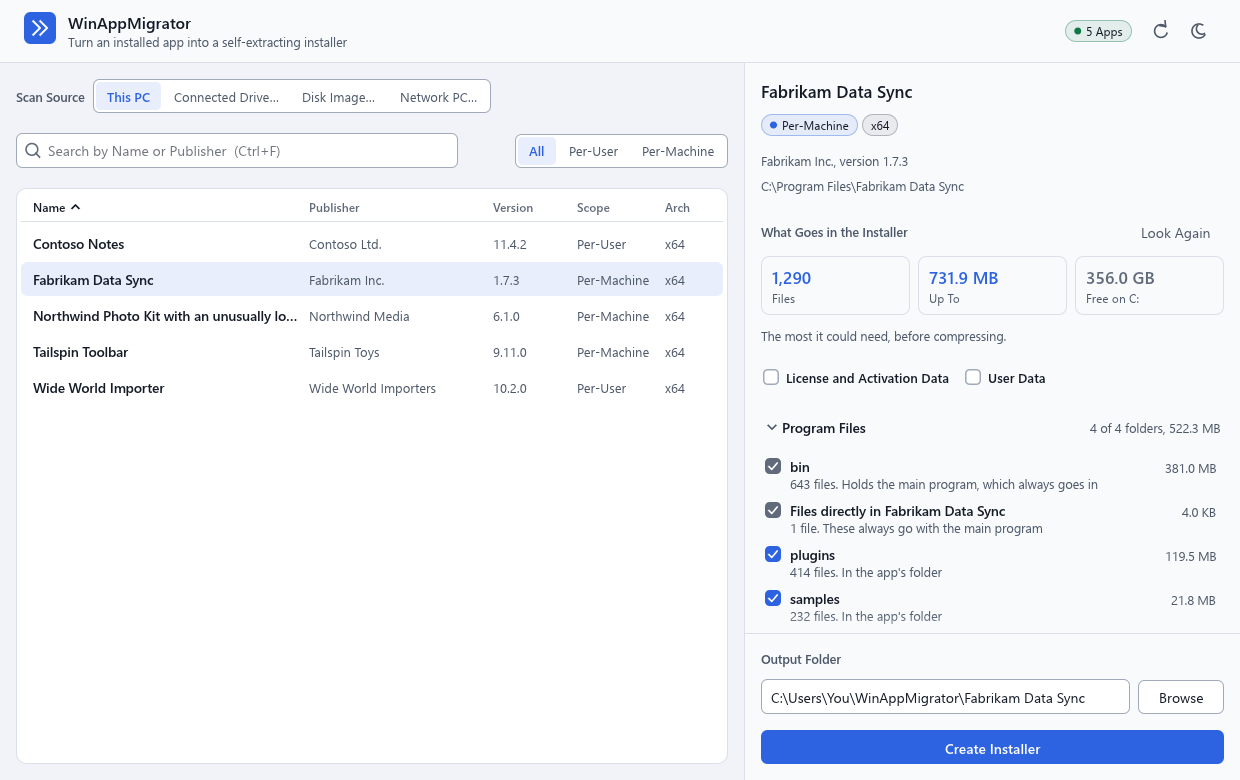
The examples use a made-up app, Fabrikam Data Sync, as the screenshots do.
| Part | What it does |
|---|---|
| WinAppMigrator, "Turn an installed app into a self-extracting installer" | The app's name and what it is for |
| The small label at the right | Loading while the list of apps is read, then how many it found, such as 5 Apps, or Load Failed |
| The circular arrow, "Reload the Application List" | Reads the list of apps again. It is greyed out while a build runs. |
| The sun or moon, "Switch to Light Theme" or "Switch to Dark Theme" | Switches between light and dark. The app remembers your choice, and so do installers run on that same Windows account. |
Scan Source has four buttons:
- This PC: the apps installed on the PC the app is running on. This is where it starts.
- Connected Drive…: the apps on a drive taken out of another PC and connected to this one. A folder picker opens, titled "Select the Connected Drive's Root (e.g. E:)". Pick the top of that drive. It then shows under the buttons, with Change… to pick another. See Moving from a connected drive.
-
Disk Image…: the apps on a
.vhdor.vhdxdisk image of another PC's drive. A file picker opens, titled "Select a Disk Image of the Other PC (.vhd or .vhdx)". The app attaches the image read-only, saying "Attaching the image, read-only…" meanwhile, and detaches it when you pick another source or close the app. See Pick a disk image. - Network PC…: the apps on another PC on your network, Windows 7 or later, read through WinAppMigrator Client, which you run there. Until that PC is paired, three steps take the place of the list of apps: put the client on the old PC, pick the old PC, and type the code it shows. See Moving from a PC over the network.
A drive or an image shows on a line under the buttons, with which Windows it has, such as "E:\ · Windows 11 Pro, 64-bit", and Change…. A long one is cut short, so that Change… stays in sight. A PC over the network shows as its name "over the network", with its address, and Disconnect in place of Change…. For a Windows older than 10, a note under it says what becomes of its apps. See Apps from Windows 7, Vista, 8, or 8.1.
- Search. The box says "Search by Name or Publisher (Ctrl+F)". Type part of a name or a company. Ctrl+F puts the cursor there from anywhere.
- Filter. All, Per-User, or Per-Machine. A per-user app was installed for one Windows account. A per-machine app was installed for everyone on the PC. See Per-user and per-machine.
- Sort. Click a column heading, Name, Publisher, Version, Scope, or Arch, to sort by it. Click it again to reverse. Versions sort by number, so 10.2 comes after 9.11.
- Move. The up and down arrow keys move the selection.
- Long names. If a name is cut short, hover over the row to see all of it.
If nothing matches, the list says "No Matching Applications" and "Adjust the search text or scope filter."
The list is the same as the installed apps Windows keeps for Settings, without the entries Windows itself hides. Those hidden entries are parts of other apps, and some may be offered under Might Also Be Part of It. Microsoft Store apps are not listed.
Before you pick anything, the right side says "Pick an Application".
At the top right: the app's name, a label saying Per-User or Per-Machine, and its architecture: x64, x86, ARM64, or Unknown. Below that, who made it and which version, such as "Fabrikam Inc., version 1.7.3", and the folder it is installed in.
This heading starts the part of the screen that matters most. Look Again, beside it, looks at the app afresh. Use it if something has changed since, such as an update to the app.
Clicking an app starts a scan straight away, in the background. You see what it is doing:
- "Getting ready to look at this app…"
- "Reading how it was installed…"
- "Looking for what might also be part of it…"
- "Looking for its services, tasks, and shortcuts…"
- "Going through its files…"
- "Reading what ties it into Windows…"
- "Finishing up…"
"You can pick another app or change what is included while this runs." Picking another app stops this look and starts one for that app. Stop stops it, and the screen says "Stopped. An installer can be built once this app has been looked at.", with Look Again to start over. If the look fails, the screen says "This app could not be looked at." with the reason, and Try Again.
When you change an option, the app looks again, and what it found last time stays on screen, greyed, until the new look is ready.
Three tiles:
| Tile | What it says |
|---|---|
| Files | How many files will go in |
| Up To | The most the installer could be, before compressing. It is usually smaller. |
| Free on C: | How much room the drive of the output folder has. It turns red if that is not enough. |
Under them: "The most it could need, before compressing." The app cannot know ahead of time how well files will compress, so it assumes they will not. That means it can ask for more room than the installer ends up taking.
If there is not enough room, a red message says so, such as "There is not enough room. C: needs up to 1.2 GB free to build this, and has 900.0 MB. Choose an output folder on another drive, or leave something out." Create Installer stays greyed out until it fits.
If the look is more than ten minutes old, a note says how long ago it was. Files are read again when you build, so a changed file is right and a missing one is listed. Click Look Again for anything new.
Both start off. Changing either makes the app look again, and keeps what you unticked. Each says what it is for in its tooltip, and again under the boxes while it is ticked.
| Option | What it says | With it on | With it off |
|---|---|---|---|
| License and Activation Data | "May be tied to this PC and need reactivation on the new one." | License files, license stores that are not tied to the hardware, and license values in your own part of the registry go in. License values in machine-wide settings or under the publisher's own key, and stores tied to the hardware, such as CodeMeter or Sentinel, are only named, never copied. | None of it is captured at all. Only the names of what was found are noted, under Left Out, and Why. |
| User Data | "Settings and history, Documents, Saved Games, and ProgramData." | The app's data folders go in, and what it remembers for you in the registry, such as recent files and saved sessions. | All of that stays behind. The app should start on the new PC much as it would for someone new, except for what it keeps among its own program files and machine-wide settings. |
A value or file whose name says it is a password, a token, or a private key never goes in, whichever options you choose. It goes by names and a few shapes of text, and does not look inside the app's own files, so a password an app keeps in its own settings file can still go in. Treat every installer as private. See What goes in an installer and Privacy and security.
An installer holds one account's data. If User Data is on and an account other than the signed-in one has data for this app, a Whose Data row appears, with a button for each account that has some. It never appears for an app installed for one account, whose data is always that account's. It starts at whoever is signed in. On a connected drive, it starts at whoever last signed in to that drive's Windows. Under it: "An installer holds one account's data. It goes to whoever is signed in where it runs."
If the app could not tell who is signed in, a note says "Could not tell who is signed in" with the reason, and asks you to choose.
What the installer holds is shown in groups. Click a group's heading to open or close it. The right end of each heading sums it up, such as "3 of 4 folders, 402.8 MB" or "1 of 2". Program Files and Might Also Be Part of It start open.
Every row with a box can be unticked to leave it out. The sizes and counts at the top follow at once.
| Group | What is in it |
|---|---|
| Program Files | A row for each folder directly inside the app's folder, a row called "Files directly in" the app's folder for the files loose in it, and a row for each other folder found that is not data. |
| Data Folders | The app's data, by where it was: "Settings in your profile (AppData)", "Settings for this PC in your profile (AppData)", "Shared by everyone on the PC (ProgramData)", "In your Documents", "In your Saved Games", or "In Public Documents". With User Data off, the heading instead says how much would come with that option. |
| Services | Services and drivers the app installed |
| Starts Automatically | Startup items: what runs by itself when someone signs in |
| Scheduled Tasks | Scheduled tasks that run the app's programs |
| Shortcuts | Its shortcuts on the Desktop and in the Start menu |
| What Ties It into Windows | One row for each kind, such as File Type, COM, or Firewall Rule, that you can untick as a whole. While a kind is ticked, each thing of that kind is listed under it. |
| What It Needs to Run | The runtimes it needs, and how each will be provided. These have no box. See Runtimes. |
| Might Also Be Part of It | Near matches, which start unticked. See below. |
| Left Out, and Why | What will not go in, by name. See below. |
A line such as "None found: scheduled tasks, shortcuts." says which kinds the app does not have, so you know they were looked for.
Each folder row says how many files it holds and where it is, such as "414 files. In the app's folder", with its size at the right. Hover over it to see the full path. Each service, task, startup item, or shortcut row says what it is and what it does, in the words the installer will use, such as "Service. Runs FabrikamSync.exe as NT AUTHORITY\LocalService, starts now and each time this PC starts". The meaning of each kind is in Installing on the new PC.
Rows you cannot untick. Some folder rows have a grey, ticked box. They always go in, and say why:
| What the row says | Why |
|---|---|
| "These always go with the main program" | The files directly in the app's own folder |
| "Holds the main program, which always goes in" | The folder the app's main program is in |
| "Holds what the main program cannot start without" | A folder with files the main program loads as it starts |
| "Goes with its font, under what ties it into Windows" | A font's folder, which follows the Font row instead |
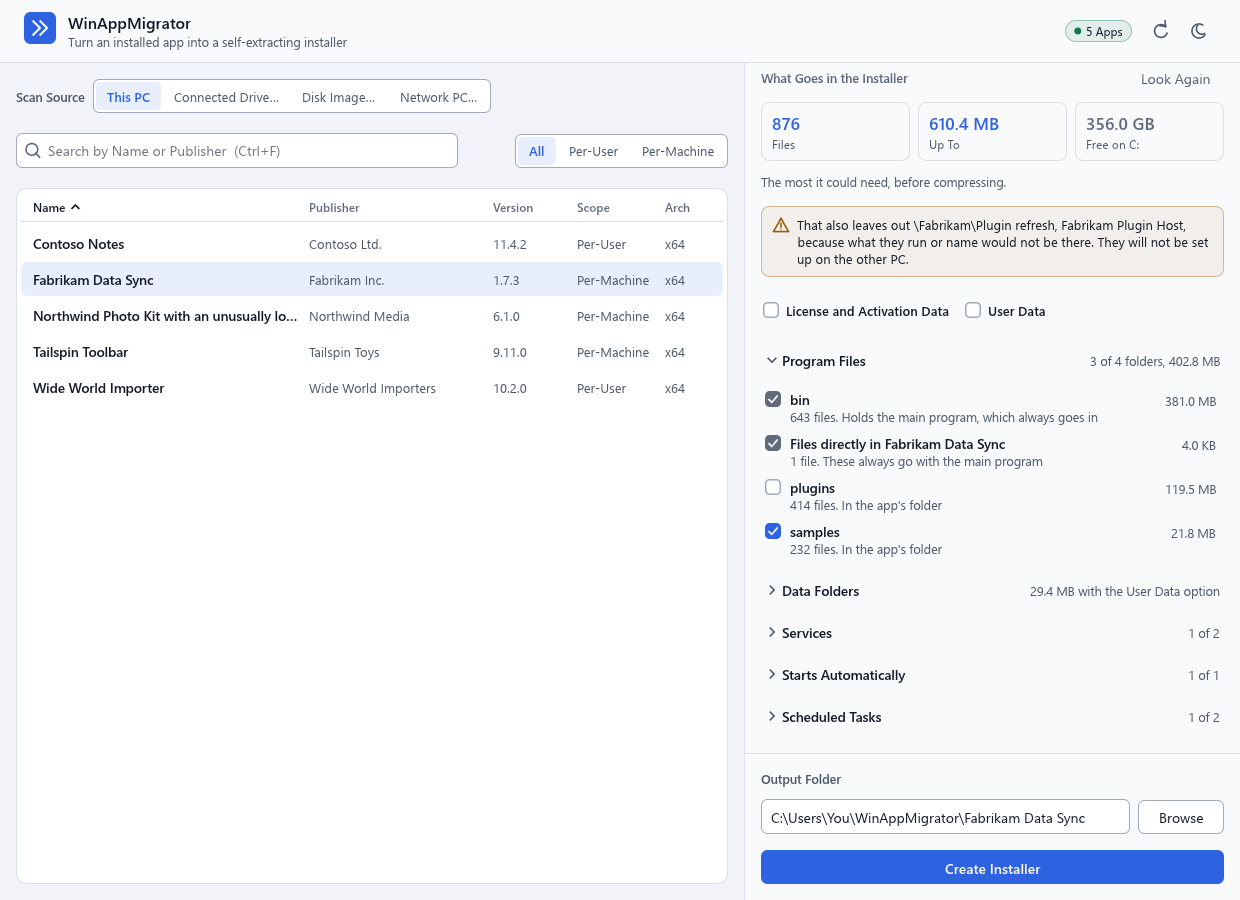
Leaving one thing out can leave another with nothing to run. A service whose program is in a folder you unticked would fail on the new PC. So when you untick something, the app works out what else that leaves out, by the same rules the installer uses. While it does, the screen says "Working out what goes with that…", and Create Installer waits.
Then an amber message names what else went, such as:
That also leaves out \Fabrikam\Plugin refresh, Fabrikam Plugin Host, because what they run or name would not be there. They will not be set up on the other PC.
Those rows show "Left out too:" and the reason, with a greyed box. Tick the folder back in and they come back.
Two more things can appear here:
- "License data in what you left out still goes in, because that goes by the License option", with the file names. A license follows the License and Activation Data option only.
- "What is left would not make a package", with the reason. Tick something back in.
The app knows what runs a file, and what is told to use one by its path. It cannot know what a program does by itself. So a program can still need a folder you unticked, without the screen being able to tell. If you are unsure, leave it ticked.
The app matches folders and settings by the app's exact name, so that it never takes another product. That can miss a folder the app keeps under a slightly different name, or a hidden part of the app with its own entry. This group offers those, each with the reason, for you to decide.
The hint at the top says: "Not in the installer unless you tick them. Ticking one looks at the app again, with the same checks as the rest, so what looks like a password still stays out."
Each row says why it is offered:
- "Its name starts with this app's name."
- "Its name has this app's name in it."
- "Its name starts with the publisher's name", followed by the name.
- "A part hidden from the list of apps, installed beside this app in" a folder.
- "A part hidden from the list of apps, from the same publisher", followed by the name.
The size is at the right. It says "over" a size when not all of it was measured. Hover over a row to see whether it is a "Folder" or a "Hidden Part of an App", and where. A row in a data folder is greyed out and says "Comes with the User Data option." until that option is on.
At most 200 are offered. Some things are never offered, however close their name: a folder shared by many apps, another app's folder, a link, anything in another account's folders, Windows' own folders, and a path written by its short name, such as PROGRA~3. The full rules are in docs/discovery.md.
Some offers are close and still not the app's. That is why each starts unticked, and says why it is there.
This group lists, by name, what will not go in. None of it has a box, because a choice can only take away from what the app found. Its sub-headings are:
| Sub-heading | What it means |
|---|---|
| "Not in this installer, because they look like credentials" | Values and files that look like passwords, tokens, or private keys. They are never captured. |
| "Not in this installer, because the License option is off" | License data that was found, with License and Activation Data off |
| "Settings and history an account keeps for the app, which only go in with the User Data option" | How much was left out of which app's settings, with User Data off |
| "The app seems to rely on certificates that were trusted on its PC, and they are not installed" | Certificates are only ever named, never installed |
| "These fonts go by the app's name, and nothing says they are its own, so they are not installed" | Fonts that only share the app's name |
| "Drivers that belong to Windows or a vendor, which cannot be passed on, so reinstall them on the other PC" | Each says "Reinstall it from its vendor's own package." |
| "No installer would be allowed to set these up:" | What the installer's safety rules refuse, with the reason for each |
If nothing was left out for those reasons, a line says "Nothing was left out for looking like a password, a license, or a certificate."
Below it, Worth Knowing, with a count, opens a list of other notes from the look, such as a link in the app's folder that was not followed.
At the bottom right, Output Folder says where the installer will be written, with Browse to pick a folder. It starts as a folder named for the app inside WinAppMigrator in your profile folder, such as C:\Users\You\WinAppMigrator\Fabrikam Data Sync. You can type any full path. Anything else shows "Enter a full folder path, such as D:\Installers."
The Free on tile follows this folder's drive. If the drive is short of room, pick a folder on another drive.
While it builds, the app keeps its working files in a folder only administrators can change, named .winappmigrator-build- and some letters, beside the output folder, on the same drive, and removes it when the build ends. A drive formatted as FAT32 or exFAT, such as many USB sticks, cannot keep that folder private, so the working files go in Windows' temp folder instead and only the installer is written to the drive. That needs room on the system drive. FAT32 also cannot hold a file of 4 GiB or more.
Create Installer stays greyed out until all of this is true:
- the look at the app has finished, for exactly the options on screen;
- what goes with your choices has been worked out, and makes a package;
- the output folder is a full path;
- there is room.
While it builds, the bottom of the panel shows what it is doing, how long it has taken, a progress bar, and Cancel:
- "Working out what goes in…"
- "Checking there is room…"
- "Bundling runtimes and drivers…"
- "Reading and compressing files: 120 of 1,290"
- "Looking over what the installer says: 3 of 12…"
- "Writing the installer…"
- "Verifying hashes…"
Cancel shows "Cancelling after the current step…". A cancelled build writes nothing, and says "Build cancelled. No installer was written." While a build runs, the list of apps, the scan source, the reload button, and the options are locked. A build and its result belong to the app it started with.
The installer is named after the app, with spaces made into underscores. With User Data on, _userdata is added, and with License and Activation Data on, _license. For example: Fabrikam_Data_Sync_installer.exe, or Fabrikam_Data_Sync_userdata_license_installer.exe.
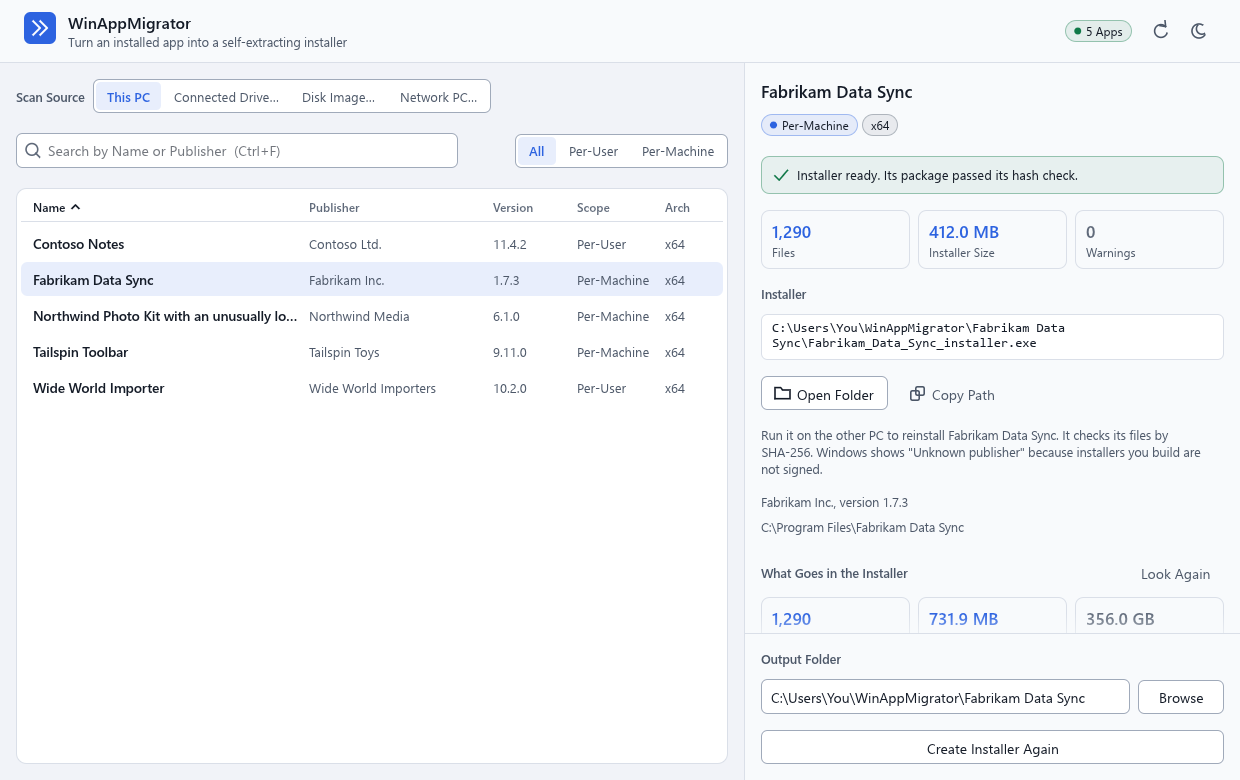
The result appears at the top of the right side, under the app's name.
| Message | What it means |
|---|---|
| "Installer ready. Its package passed its hash check." | All is well. |
| "Installer built, but 2 files were gone since the app was looked at, so they are not in it. See Warnings below." | Files were deleted between the look and the build. Click Look Again and build again if they matter. |
| "Installer built, but 3 files could not be captured, usually because they were locked or unreadable. The app may not work without them. See Warnings below." | Close the app, and anything else using its files, then build again. |
| "Installer built, and it still says something of who it came from. Read what it says below before you give it to anyone." | See the last look, below. |
| "Do not use this installer: it failed its hash check." | What was written does not match what was read. Do not use it. Build it again. |
Then three tiles: Files, Installer Size, and Warnings.
With User Data off, the build looks one last time through what the installer says about the app: its list of files and settings, and its registry settings, services, drivers, tasks, shortcuts, variables, reports, and restore plan. It looks for your account's name, your profile folder, the PC's name, and your account's SID. It does not look inside the app's own files, or in license files. It finds them in the usual ways text is stored, though not every way. For each kind it finds, an amber message comes right after the first message and the three tiles, before anything else, such as:
This package mentions the PC's name in registry values (2). It was built with none of an account's data, and anyone who has the installer can read this.
The kinds it names are "an account's name", "where an account's folder is", "the PC's name", and "an account's id". It says where it found them and how many times, and never what they were. It changes nothing and stops nothing, because what it found may be what makes the app work. You decide whether to share that installer. Some apps keep the PC's name in their own files, which this does not look at. See Privacy and security.
- Installer: the full path of the installer.
- Data File: only for an app too big for one file. An amber message comes first: "This app is too big for one executable, so its installer is two files" with both names, and "They have to stay together: copy both to the other PC, into the same folder, with these names. If you sign the installer, that signature also covers the data file." See Big apps.
- Open Folder opens the folder in File Explorer. Copy Path copies the installer's path.
A note under them says: "Run it on the other PC to reinstall Fabrikam Data Sync. It checks its files by SHA-256. Windows shows "Unknown publisher" because installers you build are not signed." See Privacy and security for why, and how to sign one yourself.
- Verification Errors, with a count, opens by itself if there are any. These come from reading the installer back.
- Warnings, with a count, lists everything else the build has to say. It opens by itself when the first message is amber, such as when files could not be captured or were gone, or when the last look found something. Up to 200 are listed, then "and" how many more.
The button at the bottom now says Create Installer Again.
A red message says why, such as "The installer could not be built." and the reason. Under it, Log gives the path of the log, and Copy Error copies the message, to paste into an issue. See Troubleshooting.
Next: Installing on the new PC.
Last changed 2026-11-11. Describes WinAppMigrator as of its latest release, 0.6.0.