 WinAppMigrator
If the old PC will not start, you can still build an installer from an app on its drive. Take the drive out, connect it to a working PC, and point the app at it. You can also point it at a disk image of that drive. This page explains how, what the app does and does not touch, and what happens to an app from Windows 7, Vista, 8, or 8.1.
If the old PC still starts, and is on the same network as a PC with Windows 10 or 11, you may not need to take anything out. The app can read it over the network instead, through a small program you run on it. See Moving from a PC over the network.
-
If the drive is failing, make a copy of it first. Reading a failing drive can finish it off. Copy the whole drive to a disk image on a healthy drive, and use the image instead of the drive. From 0.6.0, the app opens a
.vhdor.vhdximage itself: see Pick a disk image. With 0.5.0, mount the image so it has a drive letter, and pick that as a connected drive. - Connect it to a PC you can afford to lose, if you do not know who has had that drive. Windows itself reads the drive's registry files when the app loads them, and a drive made on purpose to attack Windows could do so without any fault in this project. The same goes for an image.
- Run the app on the working PC. It needs Windows 10 or 11, and administrator rights, which it asks for when it starts. The drive or image can have an older Windows: see Apps from Windows 7, Vista, 8, or 8.1.
- Connect the drive. Note the letter Windows gives it, such as
E:. - In the app, under Scan Source, click Connected Drive….
- A folder picker opens, titled "Select the Connected Drive's Root (e.g. E:)". Pick the top of the drive, such as
E:\, not a folder on it. - The app checks that the drive has a
Windowsfolder and aUsersfolder, which a drive with Windows on it has. If it does not, it says the drive "does not look like a Windows system drive (no \Windows and \Users). Pick the root of the drive from the other PC." - The list now shows the apps installed on that drive's Windows. The drive shows on a line under the buttons, with which Windows it has, such as "E:\ · Windows 7 Professional Service Pack 1, 32-bit", and Change… to pick another. This PC goes back to the apps on the working PC.
From here, everything works as in Building an installer.
A disk image is a whole drive saved as one file. The app reads an image of another PC's drive just as it reads a connected drive. It takes a .vhd or .vhdx file, the kinds Windows itself can open. These make one:
- Sysinternals Disk2vhd, of a PC that still runs;
- Windows 7's own system image backup, "Create a system image";
- Hyper-V, which keeps its virtual machines' disks as these files.
To pick one:
- In the app, under Scan Source, click Disk Image….
- A file picker opens, titled "Select a Disk Image of the Other PC (.vhd or .vhdx)". Pick the image.
- The app says "Attaching the image, read-only…" while Windows opens it. It is opened read-only, so nothing writes to it, and with no drive letter, so nothing else on the PC is offered it. The Scan Source buttons are greyed out until it is done.
- The app reads the first volume on the image that has a
Windowsfolder and aUsersfolder. - The list now shows the apps on the image's Windows. The image's file name shows under the buttons, with which Windows it has, and Change… to pick another image.
From here, everything works as for a connected drive, and the rest of this page holds for an image too.
The app lets go of the image, which Windows calls detaching it, when you pick another source or close the app. If the app is stopped part-way, it detaches the image the next time it starts. A restart of Windows detaches it anyway.
What it cannot open:
-
A VMware
.vmdkor VirtualBox.vdidisk. Windows cannot open those. Save the disk as a.vhdor.vhdxfirst. VirtualBox can do that itself. - A differencing disk, which only holds what changed since the disk it was made from, such as a Hyper-V checkpoint. Windows would open that other disk too, wherever the image says it is, even on another PC on the network, so the app refuses it before attaching anything. Merge it into the disk it was made from first, with Hyper-V's Edit Disk, and pick that.
-
A Hyper-V checkpoint,
.avhdx. Export the virtual machine's disk, and pick that. - An image Windows already has open, for example one you mounted in File Explorer. Whatever opened it may be writing to it, so it is refused. Pick its drive under Connected Drive… instead, or detach it first.
- A volume locked with BitLocker. It has to be unlocked first, and the app does not do that. Mount the image in Windows yourself, unlock it, and pick its drive under Connected Drive….
If you turn on User Data, the app reads one account's data from the drive. It starts at whoever last signed in to that Windows, or the only account that has data for the app. If more than one account has data, Whose Data lets you choose.
Paths on the drive are read as the old PC called them. So if an app was in C:\Program Files\Fabrikam Data Sync on the old PC, and the drive is E: here, the installer still offers C:\Program Files\Fabrikam Data Sync as the install location on the new PC, not E:\....
An app from a 32-bit Windows is the exception. The installer offers C:\Program Files (x86)\Fabrikam Data Sync for it, which is where 64-bit Windows keeps a 32-bit app. See Apps from Windows 7, Vista, 8, or 8.1.
-
It does not write to the drive. To read the drive's registry, the app copies the registry files, which Windows calls hives, into a folder only administrators can open,
%ProgramData%\WinAppMigrator\hives, and reads the copies. Loading a hive where it is could write to it, which is why it uses copies. The copies are removed afterward, or, if another program is holding them, the next time the app starts. If the app is stopped part-way, it removes what is left the next time it starts. -
It does not write to a disk image either. It opens the image read-only, with no drive letter. Each volume on it is opened on a folder inside
%ProgramData%\WinAppMigrator\images, which only administrators can open, and that folder is removed when the image is detached. See Files it keeps on a PC. - Windows itself may still write a little. Like any drive Windows mounts, it can update when files were last opened, and its own records of the drive.
- It never follows anything off the drive. A setting on the drive that names another drive letter, a network path, or a path that starts in the wrong place could lead to the working PC's own files, or to the network. None of those are followed. The build lists what it did not follow.
- It never follows a link on the drive. A link on another PC's drive would lead to the working PC's files once connected here.
The app runs with administrator rights and reads a drive it has no reason to trust, so these rules matter. The full detail is in SECURITY.md.
-
What was on another drive of the old PC. Only what is on the connected drive can be read. An app or its data kept on the old PC's
D:drive, for example, stays behind, and the build says so. - What was reached through a link. It stays behind, for the reason above.
- The apps' state as the old PC last saw it. The app cannot ask the old PC's Windows anything, so whether a runtime was installed there, for example, is unknown.
- Some shortcuts. A shortcut that an MSI setup made in a special form, with no file path in it, cannot be read without the old Windows' help. It is counted, and left out. A shortcut that names its target only with a variable, as Windows 7's own do, is read.
-
Variables only the old PC knew. A setting that uses a variable, such as
%Fabrikam_Home%, is read as that PC would read it only for the folders every Windows has. Others match nothing.
The app itself runs only on Windows 10 or 11. The drive or image it reads, or a PC it reads over the network, can have an older Windows. Installers built from it are made for Windows 10 and 11. Windows 7 keeps apps in the same places Windows 11 does, so they are found the same way.
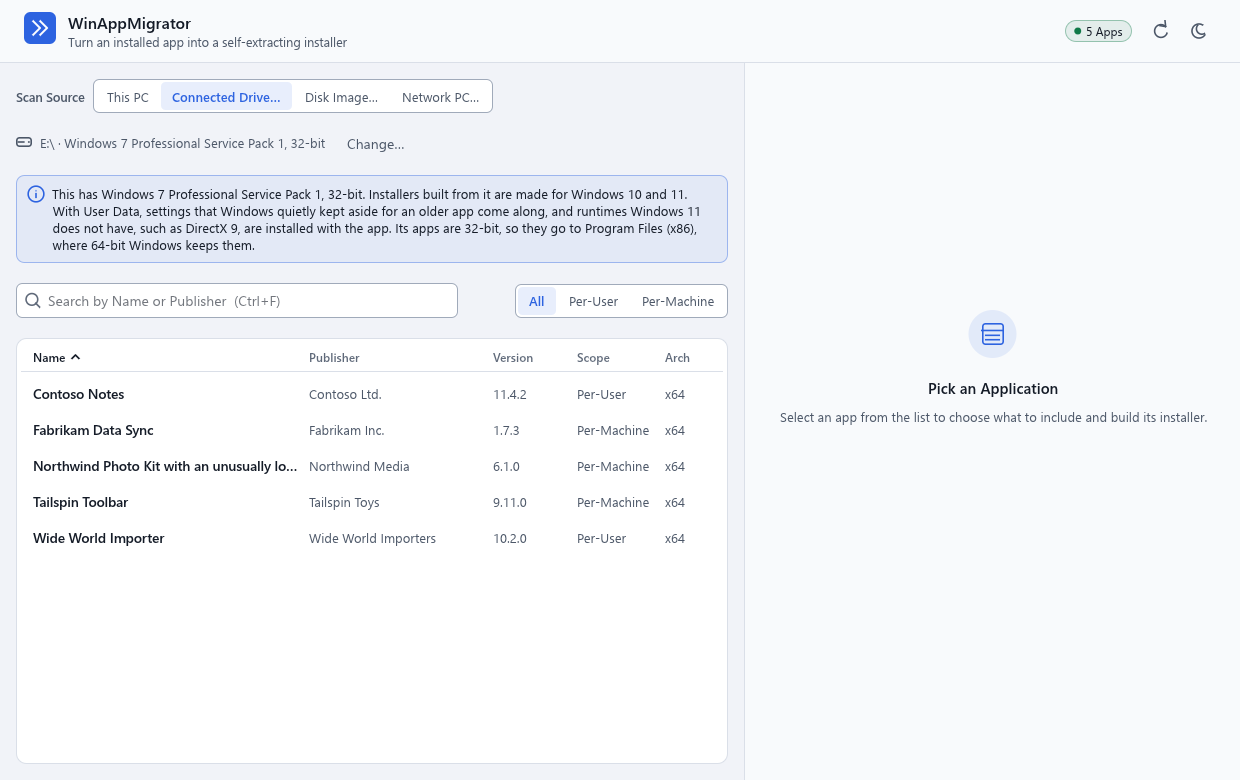
What was different on the older Windows is taken care of like this:
- Which Windows it is. Beside the drive or image, the app says which Windows it has, such as "Windows 7 Professional Service Pack 1, 32-bit". For a Windows older than 10, a note under it says what becomes of its apps. (0.5.0 read an older Windows' version wrongly, as 10.0.)
-
Settings Windows kept aside. On Windows Vista and later, an older 32-bit app that tried to save its settings in its own folder under
Program Files, or in the PC's part of the registry, where only administrators may write, was quietly given a place in the account's own profile instead. Windows calls this the VirtualStore, and gives the settings back when the app reads them, so the app never knows. That is where the settings of most apps made for Windows XP are. With User Data on, they come along, and go into the app's own folder and its own registry key on the new PC, in place of the ones it came with, so the app finds them there. They are not put back in a VirtualStore, because Windows 11 ignores one an installer makes. That was tried on a real Windows 11. A program found there is left out and named, since Windows never puts one there. With User Data off, these settings stay behind, as other user data does. -
Apps from 32-bit Windows. Many Windows 7 PCs ran 32-bit Windows. Windows 11 is 64-bit only, and 64-bit Windows keeps a 32-bit app in
Program Files (x86), with its machine-wide settings under WOW6432Node. So an app from 32-bit Windows is laid out that way. The list shows it as x86 under Arch, the installer offersProgram Files (x86)for it, and its registry settings go where a 32-bit app looks for them on 64-bit Windows. Otherwise it would be installed where it could not find its own settings. -
DirectX 9. Many games, and some other apps of that time, need parts of DirectX that no Windows has ever come with, such as
d3dx9_43.dllorxinput1_3.dll. On most Windows 7 PCs, a game's setup had put them there. If one of the app's programs needs one and does not carry its own copy, the installer installs Microsoft's DirectX End-User Runtime with the app. That needs internet on the new PC, and the runtime stays when the app is uninstalled. See Runtimes. - Other DLLs Windows 11 lacks. A program may use a DLL that some other setup put in Windows 7's own folders, and that Windows 10 and 11 do not have. It is not the app's, so it does not come along. Each one is named in a warning, which says that "Windows 10 and 11 do not come with it", so you know to install whatever provided it. The app tells by whether the Windows it is running on has a DLL of that name.
-
Shortcuts written with a variable. Windows 7's own shortcuts, and some an installer of that time made, give their target only as something like
%windir%\…. These are read as that PC would read them.
What does not work on Windows 11, whatever the app does:
- A 16-bit program. No 64-bit Windows can run one.
- A driver made for Windows 7 may be signed in a way Windows 11 refuses when Secure Boot or Memory integrity is on. A 32-bit driver is refused before anything is installed, as it is from any PC.
- An app that used Windows 7's Sidebar, Media Center, or Internet Explorer itself. Windows 11 has none of them.
- 32-bit Windows 10, as the new PC. Installers do not run on any 32-bit Windows, and a package from 32-bit Windows is laid out for 64-bit Windows anyway.
The full detail is in docs/discovery.md.
A build can read what is on a connected drive, but cannot check that the drive is what it says it is. Build only from a drive you have reason to trust, and read what the screen lists before you build.
This path is tested on GitHub's machines with a virtual drive (VHD) built on the test machine and made to look like another PC's, including some made hostile on purpose. A real drive from another PC has not been tested there.
A disk image, and apps from Windows 7, have only been tried by hand, not on GitHub's machines: .vhdx images of Windows 7 virtual machines, 32-bit and 64-bit, read with the code behind Disk Image… and built into installers, three of which were installed on Windows 11 25H2. Vista, 8, and 8.1 have not been tried. See Requirements and testing.
Last changed 2026-11-11. Describes WinAppMigrator as of its latest release, 0.6.0.