 WinAppMigrator
If the old PC still starts, you do not have to take anything out of it. WinAppMigrator, on a PC with Windows 10 or 11, can read the old PC over your network, through a small program you run there, WinAppMigrator Client. The old PC can have Windows 7 or later. This page explains how, what the client does and does not do, and what to do if something goes wrong.
| Your old PC | Use |
|---|---|
| Still starts, has Windows 7 or later, and is on the same network as a PC with Windows 10 or 11 | Network PC…, on this page |
| Will not start, or is not on a network | Connected Drive…: take its drive out and connect it. See Moving from a connected drive or a disk image. |
| Has a drive that may be failing | Make a disk image of it first, and pick that with Disk Image…. See Before you start. |
| Has Windows 10 or 11, and you will build on it | This PC, in the app on the old PC. See Building an installer. |
Over the network, nothing is unplugged, and no copy of the whole drive is made. Only what the build reads crosses the network: an app's files and settings, never the whole drive. The app runs on the PC you build on, usually the new one, and the installer is written there.
- On the PC you build on: WinAppMigrator, on Windows 10 or 11, as for any build. See Getting started.
- On the old PC: Windows 7, 8, 10, or 11, 32-bit or 64-bit, and an administrator's account or password, since the client asks for administrator rights. It needs no internet.
- Both PCs on the same local network, such as the same home router. Across a router, you type the old PC's name or address instead of picking it.
- A USB drive, or a folder the old PC can reach, such as a shared folder, to carry the client over.
In the app, under Scan Source, click Network PC…. Three steps take the place of the list of apps, and the right side says "Pair with the Old PC".
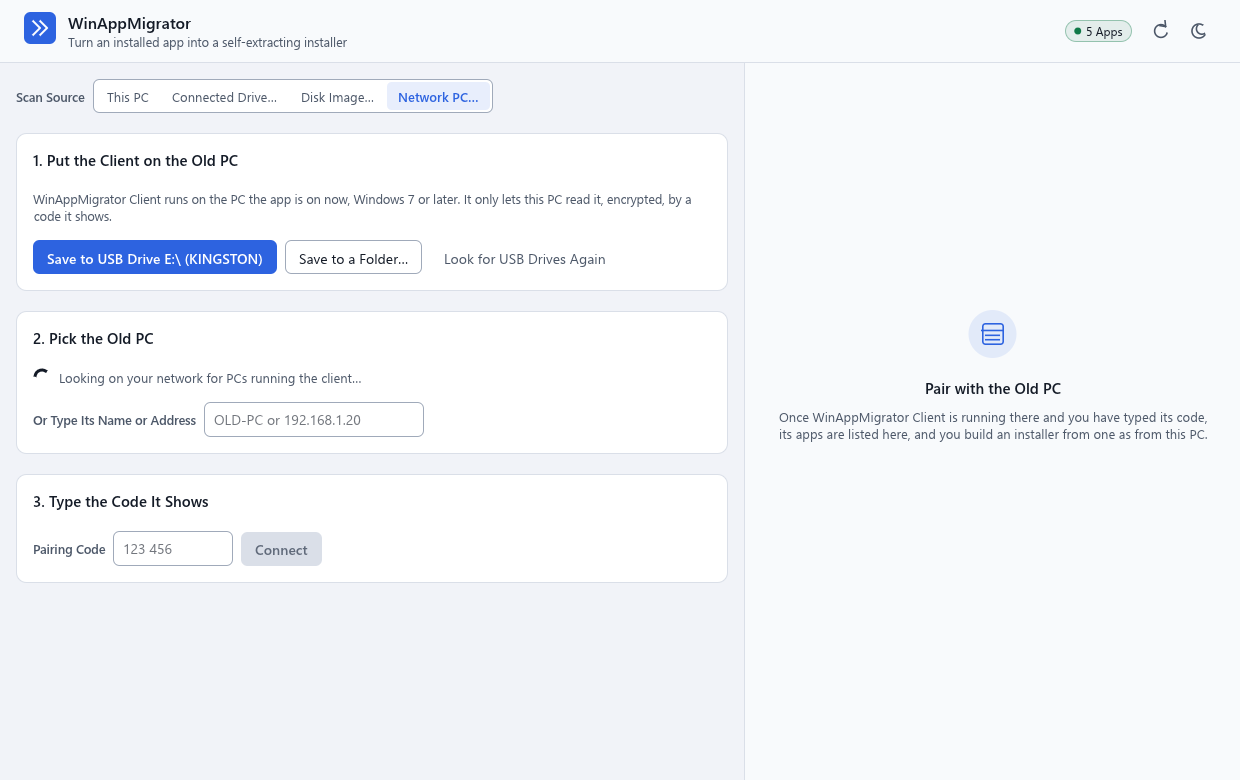
Under 1. Put the Client on the Old PC:
- Save to USB Drive, such as "Save to USB Drive E:\ (KINGSTON)", saves it to a USB drive that is plugged in. There is one button for each. If you plug one in now, click Look for USB Drives Again.
- Save to a Folder… opens a folder picker, titled "Choose a Folder for WinAppMigrator Client". Pick a folder the old PC can reach, such as a shared folder on your network.
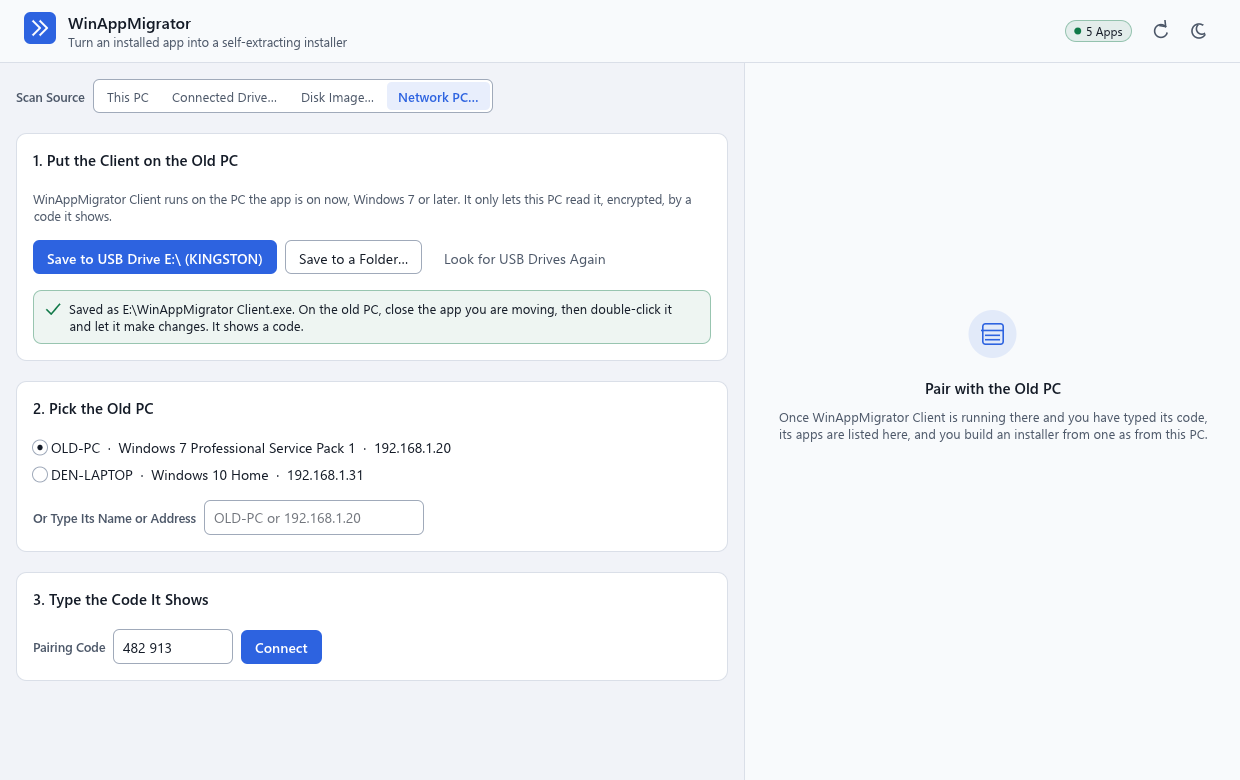
The app saves two files there: WinAppMigrator Client.exe, and WinAppMigrator Client - start here.txt, which says what to do on the old PC. A client saved there before is replaced. A green message then says where it went, such as "Saved as E:\WinAppMigrator Client.exe. On the old PC, close the app you are moving, then double-click it and let it make changes. It shows a code."
The client is one small program, the same for Windows 7, 8, 10, and 11, 32-bit or 64-bit. The app carries it, so there is nothing else to download. It is signed, as the app is, with Randy Northrup as its publisher.
- Close the app you are moving. The client reads a snapshot of the drive, taken when it starts, so closing the app first means its files are as it left them. What changes on the old PC after the client starts is not seen.
-
Double-click
WinAppMigrator Client.exe. Windows asks whether to let it make changes, and names Randy Northrup as its verified publisher. Choose Yes. On a Windows 7 without Microsoft's 2020 root certificate, Windows cannot check a signature of this kind, and says the publisher is unknown instead. See How it keeps the old PC safe. - Wait for the code. It says "Taking a snapshot of the Windows drive...", then shows the PC's name, its Windows, and a six-digit pairing code.
Leave its window open until the build is done.
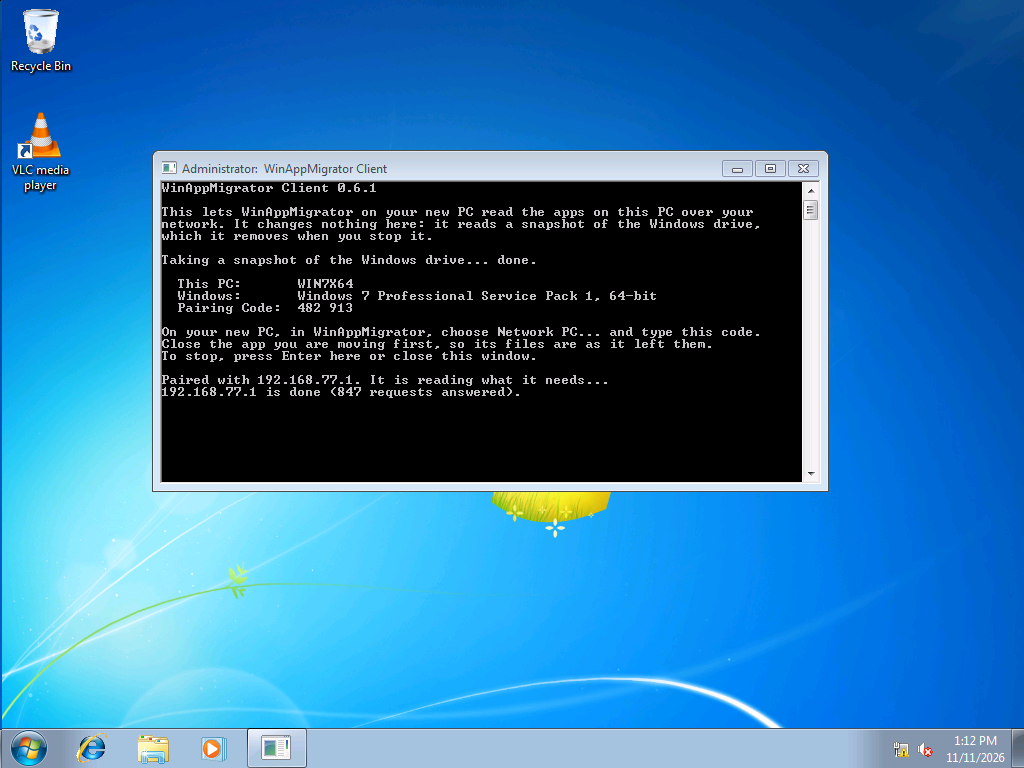
Back in the app:
- Under 2. Pick the Old PC, the app looks on your network for PCs running the client, every five seconds, and says "Looking on your network for PCs running the client…" until it finds one. Each is listed with its name, its Windows, and its address, such as "OLD-PC · Windows 7 Professional Service Pack 1 · 192.168.1.20". Pick yours. If only one is found, it is picked for you. If yours is not listed, type its name or address in Or Type Its Name or Address.
- Under 3. Type the Code It Shows, type the code into Pairing Code, and click Connect. It is greyed out until a PC is picked or typed in, and the code has six digits. The app says "Pairing…" while it pairs.
Once paired, the old PC's apps are listed, as this PC's are. The line under Scan Source names the PC "over the network", with its address and its Windows, such as "OLD-PC over the network (192.168.1.20) · Windows 7 Professional Service Pack 1, 64-bit". For a Windows older than 10, a note under it says what becomes of its apps, as it does for a drive.
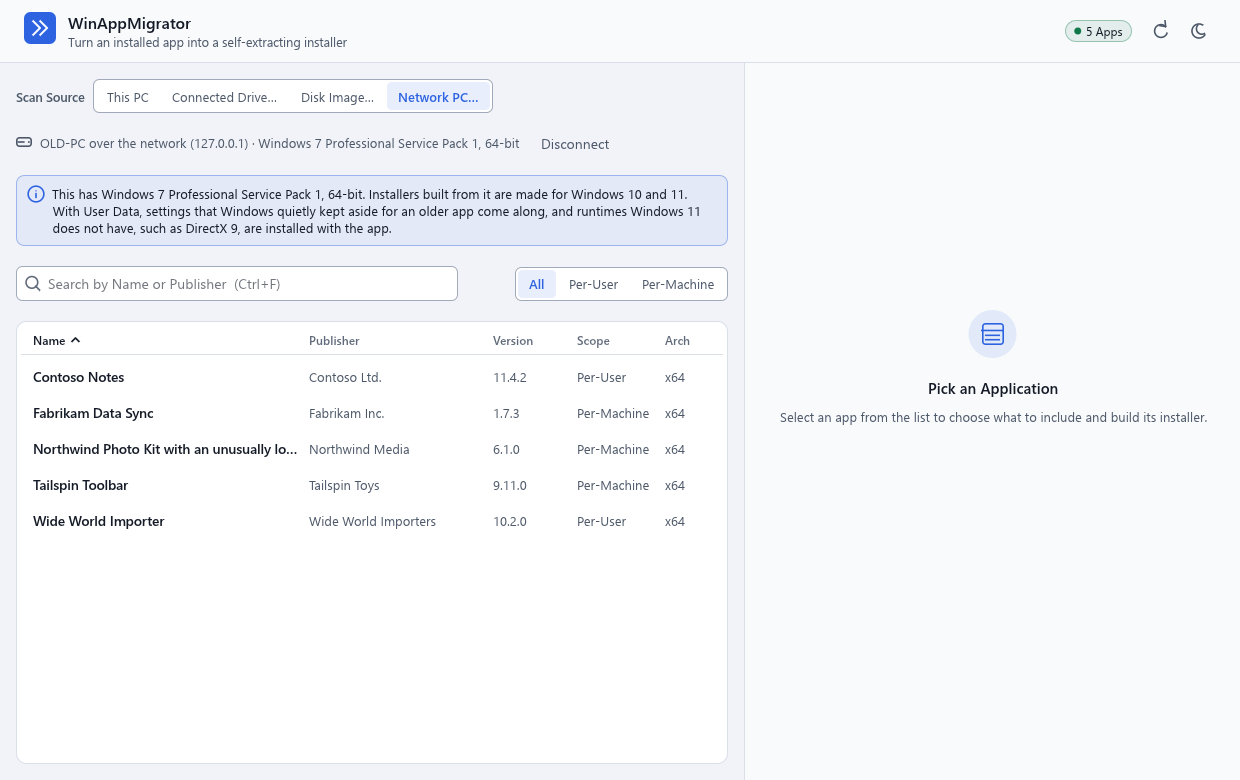
From here, everything works as in Building an installer. The rest is as for a connected drive: the same rules, the same things left behind, and the same choice of whose data goes. An app from Windows 7 is handled as on that page: see Apps from Windows 7, Vista, 8, or 8.1.
Disconnect, where a drive has Change…, ends the link and goes back to the three steps, to pair with that PC again or another. Picking another source ends it too.
The client is a go-between, and nothing more. The app, on the other PC, does all the work of looking at an app and building its installer.
What it does, while it runs:
- It runs with administrator rights, which it asks for when it starts.
-
It runs from a copy of itself in
%ProgramFiles%\WinAppMigrator Client, a folder only an administrator can change, rather than from the USB drive or folder you started it from. So no DLL someone put beside it there can be loaded into it. In Task Manager, the copy is named likeWinAppMigrator Client 1234.exe. It removes the copy when it stops. - It takes a snapshot of the Windows drive, so nothing it reads is locked or changing while it is read.
- It lets its own two ports through Windows Firewall, TCP 47732 and UDP 47731, from your local network only.
- It answers the app looking for it, with the PC's name, its Windows, and its architecture.
- Once paired, it answers the app's requests to describe, list, and read files and folders in the snapshot.
-
It keeps a record of the snapshot and the firewall rules, in
%ProgramFiles%\WinAppMigrator Client\running.txt, so they can be removed even if it is stopped part-way.
What it does not do:
- It does not capture or build anything. It only lets the other PC read this one.
- It changes nothing else on the old PC. It does not install itself, since its copy goes when it stops, and does not touch the apps. It only reads, only inside its snapshot, and never follows a link.
- It does not send the whole drive. Only what the build reads crosses the network.
- It does not need the internet.
The client's window says what is happening, in its own words:
| What it says | What it means |
|---|---|
| "This PC:", "Windows:", and "Pairing Code:" | The code to type in the app, and which PC this is |
| "Paired with" an address, and "It is reading what it needs..." | The app has paired, and is looking at an app or building |
| That address "is done", with how many requests it answered | The app closed the link: you clicked Disconnect, picked another source, or closed the app |
| That address "tried a code that is not this one." | A wrong code was tried from that address |
| "Too many wrong codes. The new pairing code is:" and a code | Five wrong codes were tried, so a new code has replaced the old one |
| "Too many wrong codes were tried, so no PC can pair with this one now." | 20 wrong codes were tried. Something on your network may be guessing. Stop the client, start it again, and type the new code it shows. |
| "The link to" an address "ended:" and a reason | The link was lost, or the app asked nothing for 30 minutes. The client keeps running. |
When the build is done, press Enter in the client's window, or close the window. Enter says "Stopping: removing the snapshot and the firewall rules...", removes both, and its record, and stops, and the copy it ran from is removed a moment later. Closing the window does the same out of sight: a second client with no window, which it started for this, removes them, and then the copy, as soon as the window is gone. Stop it only when you are done, since the app reads from it while it looks at an app and while it builds.
If the PC shut down or restarted while the client ran, the snapshot, the firewall rules, its record, and its copy stay. The next time the client runs on that PC, it removes them first. To clean up without using it, run it, then press Enter.
Two more things:
- If the app asks it nothing for 30 minutes, the client ends that link. It keeps running, with its snapshot and rules. To read the PC again, click Disconnect in the app, and pair again.
- Only one client runs on a PC at a time. A second says "the client is already running on this PC, or is cleaning up after one that was closed. Use that one, or wait a moment and start this again."
-
Only a PC with the code can read anything. The code is never sent over the network, and what is sent gives anyone listening nothing to work it out from. Anyone else on the network gets one guess each time they connect, 2 seconds apart, and after five wrong guesses the client makes a new code, which it shows. After 20 wrong guesses it lets no PC pair until it is started again, so a guess gets in one time in fifty thousand at most. The code is new each time the client runs, unless a script starts it with
--codeand six digits of its own. - What crosses the network is encrypted and checked. A message changed, replayed, or reordered on the way is refused, and the link ends.
- While it runs, anyone on your local network can reach it, and see the PC's name and its Windows. Only the code stands between them and the PC's files. Run it on a network you know, and stop it when the build is done.
- What the old PC says of itself is only shown. What the app reads from it is treated as a drive from another PC is, with the same rules. See What the app does not touch.
- The client is signed, as the app is, and Windows names Randy Northrup as its publisher when it asks to let it make changes. On a Windows 7 without Microsoft's 2020 root certificate, Windows cannot check a signature of this kind and says the publisher is unknown, and then nothing but the file itself shows it is the one the app saved. Either way, save it from the app, to a drive or folder only you can write to, and run the one you saved.
-
A DLL put beside the client is not loaded into it. It runs from its copy in a folder only an administrator can change, and starts Windows' own tools, PowerShell,
netsh, andcmd, with an environment of Windows' own, so that settings in your account cannot make them load something else.
The methods it uses, and the detail, are in SECURITY.md. See also Privacy and security.
- It reads only the old PC's Windows drive, as a snapshot. An app or its data kept on another of that PC's drives stays behind.
- A file only its own account may read is left out. Its permissions let no one else read it, and the client does not get around that.
- Data of an app installed for one account, kept outside that account's profile, stays behind. Over the network, the app cannot tell which account owns a folder outside a profile.
- It finds the old PC only on the same local network. Across a router, type its address.
- A firewall other than Windows' own has to be told to let the client's ports, TCP 47732 and UDP 47731, through. The client only sets up Windows Firewall.
- On a Windows 7 without Microsoft's 2020 root certificate, Windows cannot check the client's signature, and says its publisher is unknown.
Only by hand, away from GitHub's machines. The client was run on Windows 7 SP1 virtual machines, 32-bit and 64-bit, and on Windows 11 25H2. Five apps were built over the network from the 64-bit one, each in a few seconds, with the same files and settings as from that machine's disk image. Three of them, LegacyNotes, RetroBlocks, and Notepad++, were installed and run on Windows 11. With Windows' own DLLs planted beside the client, on Windows 7, 32-bit and 64-bit, none were loaded into it, before it copied itself or after, through pairing and a whole build.
Windows 8 and 10 as the old PC have not been tried, and neither has a real network between two separate PCs: the virtual machines were on a network of their own, inside the PC that built. The signed client was run on Windows 7 SP1 virtual machines, 32-bit and 64-bit, with none of its later updates. It worked, and Windows read its signature as untrusted, because they lacked Microsoft's 2020 root certificate. With that root added, the 64-bit one read it as valid. On GitHub's machines, the tests only pair the app with the client's own code on one machine. See Requirements and testing.
| What you see | What to do |
|---|---|
| "No USB drive is plugged in." | Plug one in and click Look for USB Drives Again, or click Save to a Folder… and pick a folder the old PC can reach. |
| "the client could not be saved in" a folder, with a reason | Pick a folder you can write to, or another drive. |
| The old PC is not listed under 2. Pick the Old PC | Check the client is running there and shows a code, and that both PCs are on the same network. Then type its name or address. Across a router, type its address. A firewall other than Windows' own has to let TCP 47732 and UDP 47731 through. |
| A name "was not found on the network" | Type the old PC's address instead. On the old PC, ipconfig, in a command prompt, shows it as "IPv4 Address". |
| "the old PC could not be reached:" and a reason | Check the client is still running, that the name or address is right, and that no other firewall blocks TCP 47732. |
| "that is not the code the old PC shows. Check it and try again." | Type the code the client shows now. After five wrong codes it makes a new one, and shows it. After 20, it lets nothing pair until you start it again. |
| The app cannot read the old PC any more, after a long pause | The client ends a link the app has asked nothing of for 30 minutes. Click Disconnect, and pair again with the code it shows. |
| What you see | What to do |
|---|---|
| Windows asks to let a program from an unknown publisher make changes | That is expected only on a Windows 7 without Microsoft's 2020 root certificate, which cannot check the client's signature. There, choose Yes only for a client you saved from the app yourself. Anywhere else, the prompt should name Randy Northrup as the publisher. If it does not, do not run that copy. |
| Windows asks for an administrator's password | The client needs administrator rights. Give an administrator's password, or sign in as one. |
| "WinAppMigrator Client could not start from a folder only administrators can change:" and a reason | The client could not copy itself into %ProgramFiles%\WinAppMigrator Client, or start that copy. The reason after it is Windows' own. Read it, and try again. |
| "The client stopped: the client is already running on this PC, or is cleaning up after one that was closed. Use that one, or wait a moment and start this again." | Find the other client's window, and use it, or press Enter there to stop it. If you have just closed one, wait a few seconds and start it again. |
| "The client stopped:" with "Windows did not make a snapshot of" the drive, or "Windows Firewall would not let the client listen:" | The reason after it is Windows' own. The client has undone what it did. Read the reason, and try again. |
| "This PC will not show up by itself" | The client could not listen for the app looking for it. On the new PC, type this PC's name or address instead, as it says. |
For anything else, see Troubleshooting.
Last changed 2026-11-11. Describes WinAppMigrator as of its latest release, 0.6.0.