 WinAppMigrator
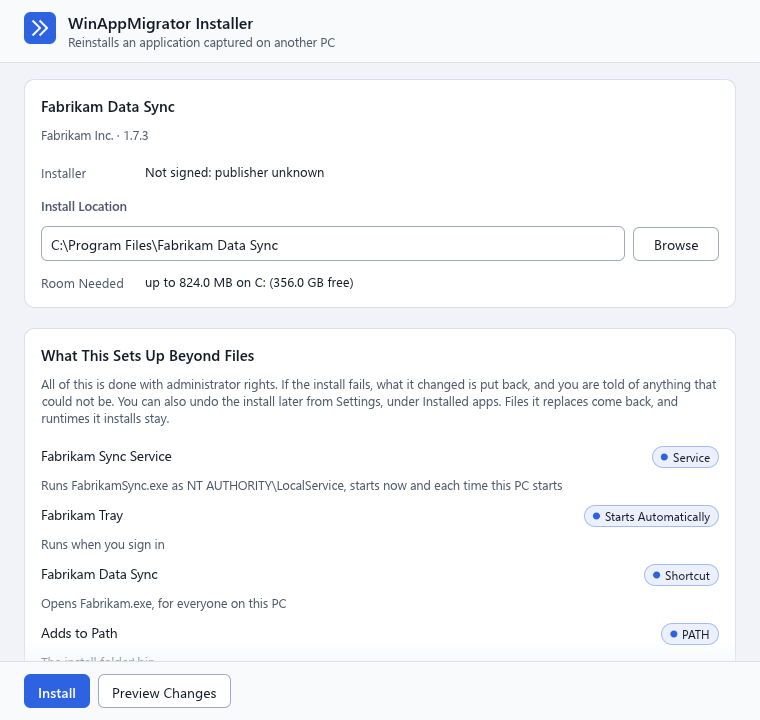
The installer is one window. It checks itself, shows you where it will install and everything it will set up, and installs only when you click Install. This page goes through it from top to bottom, using the words on the screen.
-
Copy the whole installer. If the build gave you a
.wamdatafile as well as the.exe, copy both into the same folder, and keep their names. See Big apps. - Only run installers you trust. An installer runs with full administrator rights. Treat one like any other program: run it only if you built it, or got it from someone you trust. See Privacy and security.
- You need administrator rights on this PC, and Direct3D 12 for the window. Without Direct3D 12 you can still install from a command prompt. See Command line.
Double-click the installer. Windows shows the UAC prompt. An installer is not signed unless whoever built it signed it, so the prompt usually says Unknown publisher. That is expected. See Privacy and security.
The window, "WinAppMigrator Installer", "Reinstalls an application captured on another PC", opens at once, however big the installer is. It says "Checking the installer…" while it checks the hash of its whole package. That reads all of it, so a big installer takes a while. From this moment the installer holds its own file open, and its data file if it has one, so neither can be changed or swapped while the window is up.
The check can stop here, with a red message. The common ones are:
- The installer is damaged or was changed after it was built: copy it again from where it was built.
- Its data file is missing, or is not the right one: copy both files again, into one folder.
- "This installer's package cannot be used on this PC", for example because the app's programs are built for another kind of processor, or need a newer Windows. Nothing has been changed.
All of these are explained in Troubleshooting.
When the check passes, the window's title becomes "Install" and the app's name.
The first card has the app's name, with the publisher and version under it, such as "Fabrikam Inc. · 1.7.3". Then:
| Row | What it says |
|---|---|
| Captured From | The name of the PC the app came from. It only appears when the installer was built with the User Data option on. |
| Installer | Whether this installer file is signed: "Checking its signature…", then "Not signed: publisher unknown", or "Signed by" and the signer's name. A signature that does not hold up shows a red message instead: "This installer's signature is not valid", with Windows' reason, and "It may have been changed since it was signed." |
| Install Location | The folder the app goes into, with Browse to pick one. It starts as the folder the app was in on the old PC. An app from a 32-bit Windows starts in Program Files (x86) instead, where 64-bit Windows keeps a 32-bit app. If that cannot be used here, a hint under it says why. |
| Room Needed | How much room the install needs on that drive, and how much is free, such as "up to 824.0 MB on C: (356.0 GB free)". It counts the package unpacked as well as the app's files. |
The publisher name on the first line comes from the package, so anyone could have written it. The Installer row comes from Windows, and is the one to trust.
If the folder in Install Location cannot be used, a hint under it says "Enter another folder, such as C:\Program Files\App:" and why. Install and Preview Changes stay greyed out until you choose another. The reasons are:
| Reason on screen | What to do |
|---|---|
| "it already has files, and no install is on record here, so use an empty folder" | Choose an empty or new folder. This protects another app's folder from having its files replaced. |
| "it must be a full path" | Type a path that starts with a drive letter, such as C:\Program Files\Fabrikam Data Sync. |
| "it cannot be a whole drive" | Use a folder on the drive, not the drive itself. |
| "it cannot be the Windows folder" | Choose a folder outside C:\Windows. |
| "it holds other things side by side, so the app needs a folder inside it" | Add a folder for the app, such as C:\Program Files\Fabrikam Data Sync instead of C:\Program Files. |
| "it is a folder that belongs to Windows, or whose contents run or load by themselves" | Choose an ordinary folder. A Startup folder, for example, is refused. |
| "it has to be a plain path on a drive of this PC" | A network share is refused, and so is a name Windows would read as something else. |
| that it "is a link to somewhere else, and others may be able to change where it leads" | Use the folder the link leads to. |
| "it is where installs keep their records" | Choose a folder outside %ProgramData%\WinAppMigrator. |
If the folder has files and an earlier install of this project is on record there, the installer will use it, and warns: "This folder already has files. Files with the same names are replaced, and come back if you uninstall."
Once a folder is accepted, the window replaces a file, registry value, service, task, shortcut, or variable of the same name, as --force does on the command line. What already belongs to another app, such as its service or file type, still stays that app's.
If the drive looks short of room, an amber note says "There may not be enough room here" and what is needed. The package can be unpacked on another drive, but the app's files still have to fit on this one. The install itself checks the room again before it starts.
If a previous install by any of these installers was cut off, by a crash or a power cut, an amber note says "An earlier install of" that app "never finished. Install undoes it first." That happens automatically when you click Install.
This card is the list you agree to when you click Install. Under its title it says:
All of this is done with administrator rights. If the install fails, what it changed is put back, and you are told of anything that could not be. You can also undo the install later from Settings, under Installed apps. Files it replaces come back, and runtimes it installs stay.
Each row has a name, a label at the right saying what kind of thing it is, and a line saying what it does. A label in the usual blue is ordinary. A label in amber marks something that runs with full rights, such as a service that runs as LocalSystem, a driver, or a firewall rule that lets connections in. Look at those twice.
If the list is empty, it says "Nothing: it only copies files, and settings in the app's own registry keys."
The list is worked out for the location in the box. If you change the location, it says "Working out what this would set up at this location…" for a moment, and Install waits.
| Label | What it is | Example of the line under it |
|---|---|---|
| Service | A service: a program Windows runs in the background | "Runs FabrikamSync.exe as NT AUTHORITY\LocalService, starts now and each time this PC starts". Others say "starts now and soon after each time this PC starts", "starts only when something asks it to", or "is disabled". |
| Driver | A driver the app owns | "Loads" a file "into Windows itself". Always amber. No test of the project has loaded a driver. |
| Scheduled Task | A scheduled task | "Runs as SYSTEM", or as an account. "with the highest rights it can have" is marked amber. A task that ran as a person on the old PC runs as whoever installs it. |
| Starts Automatically | A startup item | "Runs when you sign in", "Runs for everyone who signs in", or "A shortcut in the Startup folder, for you" |
| Shortcut | A shortcut on the Desktop or in the Start menu | "Opens Fabrikam.exe, for everyone on this PC" or "for you" |
| PATH | An entry added to the Path variable | "Adds to Path" and "The install folder\bin". It is added to what is there, never put in place of it. |
| Environment Variable | An environment variable | "Set to" its value |
| Shell Extension | Code that loads into File Explorer | "Loads" a file "into Explorer, for everyone on this PC". Amber. |
| Menu Command | A command on the right-click menu | "Adds a command to the menu of" a kind of file. "Changes what opening one of these does" is amber. |
| Link Type | A link protocol, such as fabrikam:
|
"Links of this kind open with the app" |
| File Type | A file type, such as .fds
|
"Files of this type open with the app" |
| COM | COM classes other programs can start | "COM in" a file, with how many settings. "COM permissions" is amber. |
| Firewall Rule | A firewall rule for one of its programs | "Allows incoming connections on 8080 for FabrikamSync.exe, on every network". Allowing incoming connections is amber. |
| Event Log Source | A name the app writes to Windows' event logs under | "Can write to the Application log, with messages from its own files" |
| Font | A font in the install folder | "Loads from the install folder when you sign in" |
| ODBC Driver | A database driver for ODBC | "Loads into programs that use ODBC to reach a database". Amber. |
| ODBC Data Source | A saved database connection | "A database connection, for everyone on this PC" |
| Compatibility Setting | How Windows starts some of its programs | "How its programs start" |
| Default Apps | An entry that lets you choose the app in Default apps | "Can be chosen in Default apps. Nothing is changed to it" |
| Program Name | A name Run and other programs can find it by | "Run and other programs can find it by this name" |
| Other Settings | Registry values outside the app's own keys and the kinds above | "3 settings outside the app's own keys", "In" the keys. Amber if any are in Microsoft's keys. |
Some things can only be judged once the install gets to them, such as a service of the same name that already belongs to another app. Those stay on the list as asked for. When the install gets there it leaves them alone, and says so.
Under the rows, amber notes say what you ought to know, for example:
- that credentials were not put in the installer, so you may have to enter them again;
- that the License or User Data option was off when it was built, so that data is not in it;
- which certificates the app seemed to rely on, which are never installed;
- what whoever built the installer left out, and what they added;
- that the app may not work here: "This app was on Windows build" a newer one, or that Windows would run some of its programs "through an emulator";
- that files from Documents or Saved Games will go "under" the install folder "in a folder named _external", because this PC's folder is outside your profile.
Then, in amber, each thing the safety rules leave out, with the reason. The first 20 are shown in full. The rest are under "more were left out", which you can open. The rest of the install still goes ahead without them. What is refused, and why, is in What goes in an installer.
If the package cannot go to the chosen location at all, a red message says "This package cannot go to this location" and why.
This card only appears when the installer holds user data or license data. Each box starts ticked.
| Option | What it says |
|---|---|
| User Data | "On: settings, Documents, and Saved Games go to the usual folders of whoever is signed in. Off: all of it goes under the install folder, and nothing is set up to run from it." If the installer says whose data it holds, a line under it reads "This holds the data of" that account. |
| License | "Activation and license files and keys. Some may need reactivation here." |
Changing a box changes the list above to match, straight away.
User data always goes to whoever is signed in to Windows, even if another administrator's name was typed at the UAC prompt. If the installer cannot tell who that is, it says so, leaves per-user settings out, and puts user data under the install folder rather than guess. If no one is signed in to that session, user data and per-user settings go to the account the installer runs as, and it says that too.
"What this app needs, and how each is provided." Each runtime has a label:
| Label | Meaning |
|---|---|
| Included | Inside the installer. It installs without internet, except the DirectX End-User Runtime, whose installer fetches it from Microsoft. Of these, only the x64 Visual C++ runtime has been installed for real in the project's tests. |
| Installed with winget: and an id | It could not be downloaded when the installer was built, so the installer uses winget, which needs internet. This route has not been run in the project's tests. |
| Windows Feature: NetFx3 | .NET Framework 3.5, turned on as a Windows feature. This can need internet. This route has not been run in the project's tests. |
| Built into Windows | .NET Framework 4, which Windows 10 and 11 already have |
| Ships with the App | The app carries its own copy |
| Install Manually | There is no installer for it here. Install it yourself. |
If there are none, it says "No additional runtime dependencies were detected." See Runtimes.
Preview Changes works out exactly what an install would do, and changes nothing. It checks there is room, unpacks the package to a private folder, works out the changes, and removes that folder again. The result card is headed "Preview: Nothing Has Been Changed Yet", with Changes Planned, and a list of the changes, with services, tasks, and shortcuts first. The window lists the first 300, then says how many more.
A preview does not check each file's hash. The whole package's hash was checked when the window opened.
Install stays greyed out until the location can be used and the list is for that location. When you click it:
- It works out the list once more. If what it would do has changed since you looked, it installs nothing, shows the new list, and says "What this would do here has changed, so nothing was installed. Look over the list below, and click Install again if it is what you want."
- It checks there is room on every drive it writes to.
- It unpacks the package to a folder only administrators can use, checking each file's hash as it comes out.
- It installs, keeping a journal of each change first, so that it can be undone.
- It reads back every file it installed and checks its hash.
- It starts the services that are set to start by themselves.
At the bottom you see what it is doing, a count where there is one, the time it has taken, a progress bar, and Cancel. The steps you may see are "Getting ready…", "Unpacking", "Checking the package", "Undoing an earlier install that never finished", "Installing runtimes", "Copying files", "Setting up services", "Setting up drivers", "Writing registry settings", "Restoring license data", "Setting up scheduled tasks", "Making shortcuts", "Setting environment variables", "Adding the app to Settings", and "Checking what was installed".
Cancel shows "Cancelling after the current step…", and then "Putting back what was changed". Closing the window while it installs does the same as Cancel: the window stays until everything is put back. If nothing had been changed yet, it says "Cancelled. Nothing was changed."
The installer checks hashes three times:
- When the window opens: the hash of the whole package. A truncated copy, or one edited after it was built, is refused before anything in it is read.
- As it unpacks: each file's hash, before anything is written to its place.
- After it installs: it reads back each file it installed and checks it again.
Hashes catch damage, and changes by anyone who does not also update the hashes. They do not prove who made an installer. Only a signature does that.
The result card appears at the top, headed "Install Result".
| Message | What it means |
|---|---|
| "The application was installed and passed its hash check." | All is well. If anything was left out by the rules, it adds "without what is listed as left out below." |
| "The install was cancelled, and what it changed was put back." | You cancelled. |
| "The install failed, and what it changed was put back." | Something failed. What it changed was put back, except any runtime it installed. Anything listed in amber under it was left, and says why, such as a service that goes only when the PC restarts. |
| "The install failed, and not all of what it changed could be put back. What is left is listed below, and the next install tries again." | Read the list. Running an installer again tries again to put it back. |
| "The install did not finish cleanly. Review the problems below." | Read the messages under it. |
Then three tiles: Changes Made (or Changes Put Back after a failure), Warnings, and Errors. Labels say Package Hashes Valid and Installed Files Valid, or INVALID in red. Up to five warnings and every error are shown as messages. "A dependency needs a reboot to finish. Restart Windows, then launch the app." means a runtime asked for a restart.
Changes, with a count, opens the list of what was done, up to 300. If the install did not finish cleanly, the path of its log is shown as Log.
After a clean install, the buttons at the bottom become Close and Open Install Folder.
- Program files go in the install location.
-
User Data, with that box ticked, goes to the signed-in account's own AppData, Documents, Saved Games, and to ProgramData. A Documents or Saved Games folder that this PC keeps outside your profile is not written to. Those files go under the install location, in
_external, and the list says so first. With the box unticked, all user data goes under the install location. - Shortcuts go to this PC's Desktop and Start menu: yours, or everyone's if that is where they were.
- Path gets only the app's entries added. Nothing else in it changes.
-
What another app already has here stays that app's. A file type, link type, COM class, service, event log source, font, or anything like it that already belongs to something else is left alone, and the installer says so. An app that expected to open
httplinks, for example, has to be set as the default again in Settings. - Settings gets an entry for the app, so you can uninstall it like any other. See Undoing an install.
| What you see | Why | What to do |
|---|---|---|
| "this app cannot run on this PC, so nothing was changed" | Its programs are built for another kind of processor, or need a newer Windows | Install on a PC that matches the old one |
| "there is not enough room for this, so nothing was changed" | Not enough free space on a drive it writes to | Free up space, or choose a location on another drive |
| "another install or uninstall is running" | Only one runs at a time | Wait for it to finish, then try again |
| A file "has a name that this version of Windows opens as a device and not as a file" | The app has a file named like aux.h, which Windows before Windows 11 cannot hold |
Install on Windows 11 |
A data folder such as %AppData% is under a link |
The installer will not write through a link | Untick User Data and License, and install without them |
More are in Troubleshooting.
Last changed 2026-11-11. Describes WinAppMigrator as of its latest release, 0.6.0.